
How to create and edit a webinar
This article walks you through creating a new webinar, setting up registration and tickets.
Creating a Webinar
From the dashboard, click Create Event
Select Webinar from the event type options.
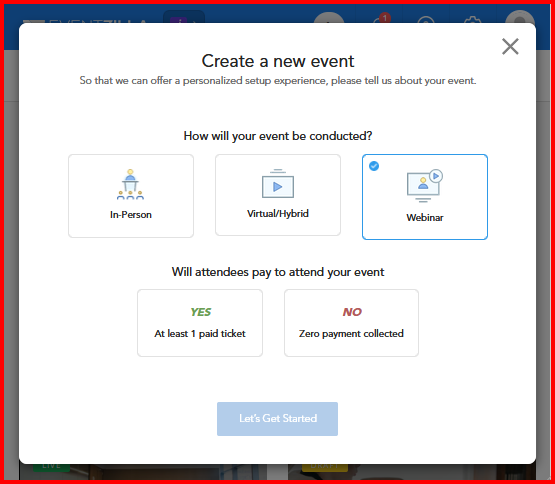
Fill in the webinar details
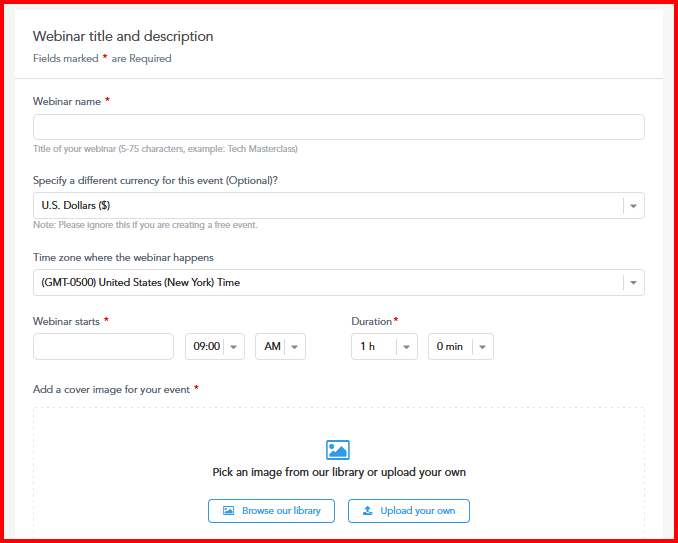
| Field | Required? | Notes |
|---|---|---|
| Webinar name | Required | The title attendees will see on the registration page and in confirmation emails. |
| Currency | Optional | Use this if you want to charge for tickets in a currency different from your account's default currency. |
| Timezone | Required | Determines how the start time is displayed to registrants. |
| Cover image | Optional | Displayed on the registration page and in listings. Use a high-resolution image for best results. |
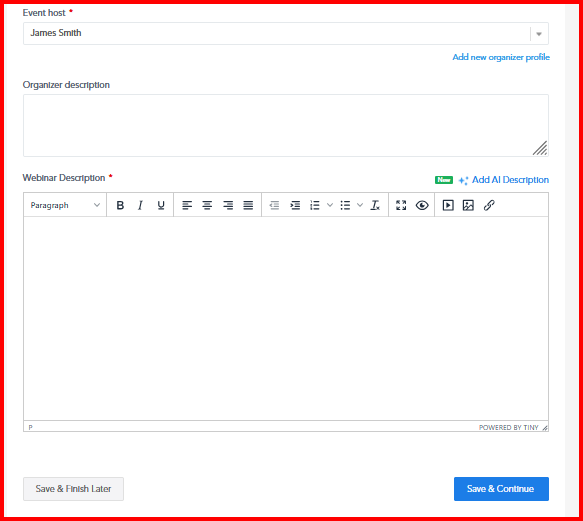
| Event host | Required | The name of the person or organization hosting the webinar. |
| Organizer description | Optional | A short bio or description of the host/organizer, shown on the registration page. |
| Webinar description | Optional | Details about the webinar's content, agenda, or purpose — this helps registrants know what to expect. |
Set the schedule
Configure the following:
- Title – confirm or adjust the webinar title.
- Host – confirm the assigned event host.
- Timezone – confirm the timezone for the session.
- Start date and time – when the webinar begins.
- Duration – how long the webinar will run.
Webinars do not have a separate end date/time field — only a duration. The maximum allowed duration is 8 hours.
Add tickets
Choose a ticket type for registration:
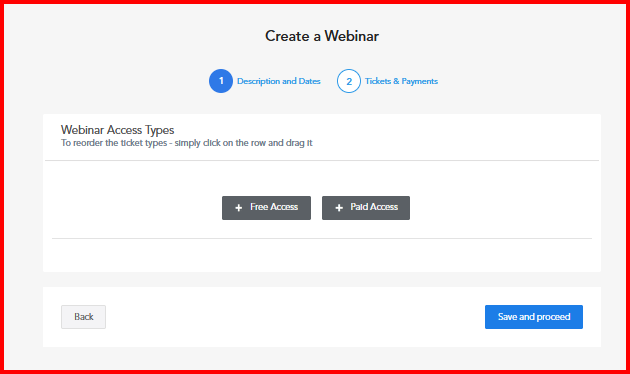
- Paid – set a price (and currency, if specified in Step 2).
-
Free – no charge for registrants.
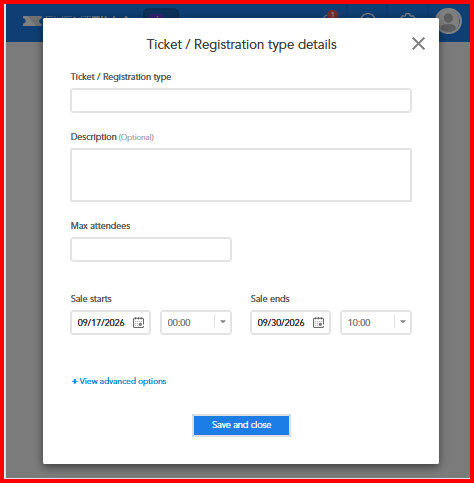
Webinars support only one ticket type per event. If you need multiple pricing tiers or ticket categories, consider using a different event type.
If the event includes paid tickets, please specify the ticket fee and select the required online payment method.
Step 5: (Save and Publish) — clicking it routes to the webinar configuration page for additional settings.
How to Edit an Eventzilla Webinar?
Once a webinar has been created, you can update its details from the webinar settings page.
Go to Event Setup → Webinar → Webinar Settings.
Click Edit Details.
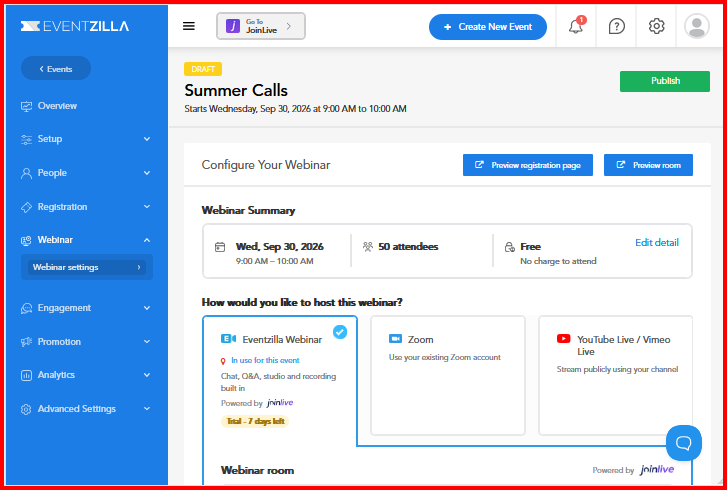
Update the required webinar information, such as:
- Webinar date and start time
- Available tickets
- Ticket type and ticket-related details
- Other webinar information available for editing
Save the changes to update the webinar.
Specify the Stream Type
You can specify which streaming setup will be used for your webinar from the webinar settings.
Select the appropriate Stream Type and configure the required streaming details.
For more information about the available streaming options and how to configure them, click here.
How to Preview the Webinar Registration Page?
Before sharing your webinar registration page with attendees, you can preview how the page will appear to registrants.
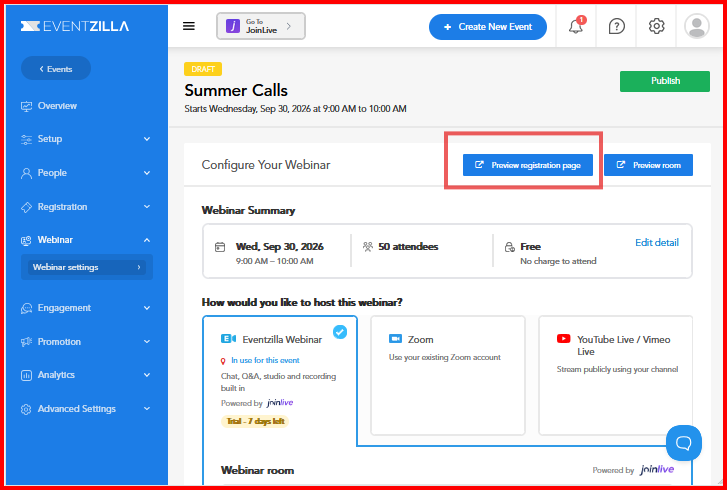
- Go to the webinar's settings page.
- Click the Preview Registration Page tab.
- Review the registration page to verify the webinar details, ticket information, and overall page layout.
- Make any required changes from the webinar settings and preview the page again before publishing or sharing the registration link.
The preview helps you confirm that the information displayed to attendees is correct before they register for the webinar.
How to Clone an Eventzilla Webinar?
The Clone option provides a quick way to create a copy of an existing webinar event page. This is useful when you want to create a new webinar with similar event details without starting from scratch.
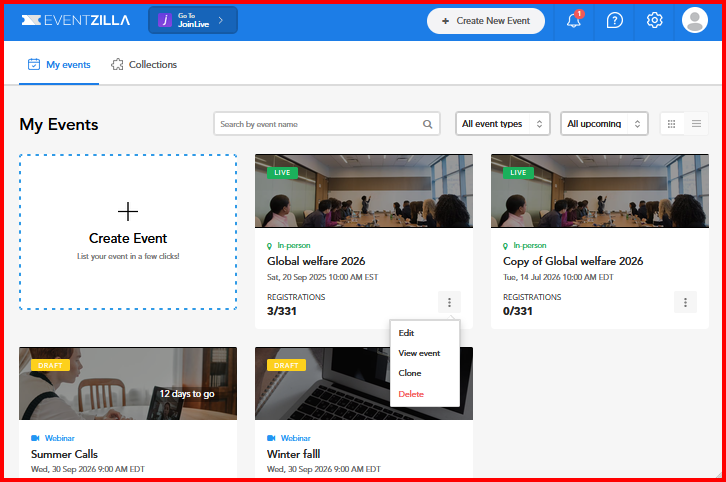
To clone a webinar:
- Go to My Events.
- Locate the webinar you want to copy.
- Click the three-dot menu for the event.
- Select Clone.
- Review and update the copied webinar details as required.
- Save or publish the new webinar.
Cloning can save time when creating recurring or similar webinars because the new event can be created using the existing webinar page as a starting point.
When cloning a webinar, review the copied event carefully and update any information that is specific to the new webinar. Streaming provider settings may need to be configured separately for the cloned webinar.
For any additional questions, please write to help@eventilla.net