
Eventzilla Webinar plans, trial, and attendee limits
Eventzilla Webinars provides flexible plans based on the number of attendees you expect for each webinar. You can start with a 14-day free trial, review the available plan options, and activate a suitable plan based on your webinar requirements.
The available attendee limits range from 25 to 1,000 participants per webinar, with higher-capacity options available through the plan selector.
14-Day Free Trial
Your 14-day free trial starts automatically when you save these settings below - no separate sign-up.
Eventzilla Webinars includes a 14-day free trial so you can explore the webinar functionality before selecting a paid plan.
During the trial period:
- You can enable the webinar trial without entering or updating payment-card details initially.
- No immediate subscription payment is required when starting the trial.
- You can use the trial period to review the webinar setup and determine the attendee capacity you need.
- Once the trial period ends, you can activate the plan that best matches your requirements.
The Joinlive pricing page also confirms that its free-trial experience does not require a credit card.
No payment-card update is required to start the trial.
During the trial, review the available plans and choose the appropriate plan before the trial period ends.
Eventzilla Webinar Plans and Pricing
You can choose a plan based on the number of participants you expect to attend each webinar.
The current pricing page shows the following capacity options:
| Plan capacity | Current monthly price |
|---|---|
| 25 participants | Free |
| 50 participants | $11.99/month |
| 100 participants | $24.99/month |
| 250 participants | $34.99/month |
| 500 participants | $44.99/month |
| 1,000 participants | $54.99/month |
Plans have no long-term commitment, and subscribers can upgrade, downgrade, or cancel their plans.
Attendee capacity
The attendee limit determines how many people can attend a live webinar under the selected plan.
For example, a 100-participant plan allows up to 100 attendees for the webinar. The pricing page also indicates that plans can support webinars of up to 8 hours per webinar .
What is included with the Webinar plans?
Depending on the selected plan, Eventzilla Webinars provides access to webinar hosting and engagement capabilities such as:
Presentation and production
Webinars can use different presentation formats, including studio broadcasts, collaborative presentations, and pre-recorded/simulive sessions. The platform also provides production capabilities through the broadcast studio.
Engagement tools
Webinar hosts can engage with attendees using features such as:
- Live chat
- Q&A
- Polls
- Interactive video and audio sessions
The exact participant limits for interactive meetings can vary by plan.
Registration and attendee experience
Webinar registration can be managed through the platform, with options to customize the registration form and registration website.
Additional webinar capabilities
Depending on the subscription and configuration, webinar workflows can also include:
- Recurring, automated, or simulated-live sessions
- Studio layouts and production tools
- Backgrounds and backstage/producer functionality
- Handouts and offers
- Speaker profiles and bios
- Email reminders
- Webinar replay and recording capabilities
- Attendance, engagement, and replay analytics
Some of these capabilities are configured within the Joinlive workspace associated with the Eventzilla Webinar subscription.
How to view your Webinar plan and usage
You can review your current webinar subscription and available plan information directly from your Eventzilla account.
- Go to Account Settings.
- Select Billing and Usage.
- Open Plan and Add-ons.
-
Review your current webinar plan, attendee capacity, and available upgrade options.
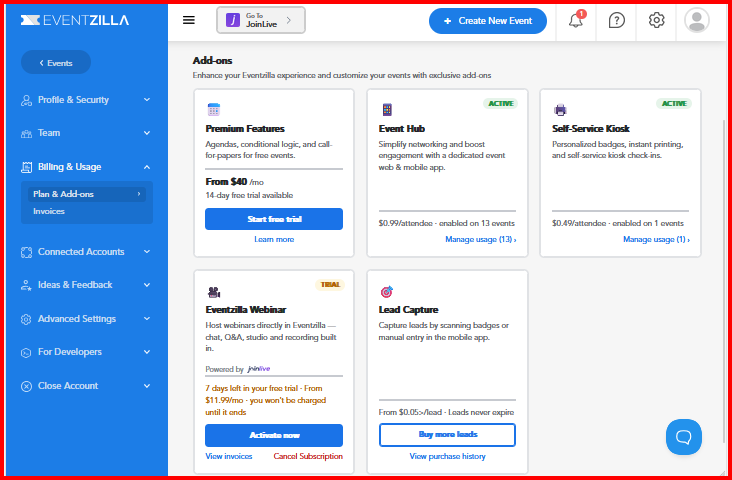
This section can be used to check which plan is currently active and determine whether you need to increase the attendee capacity for upcoming webinars.
How to select or change the Webinar plan
Eventzilla Webinars provides a participant-capacity selector so you can choose the plan that matches your expected audience size.
The plan selector can include capacity options ranging from 25 to 1,000 participants. Select the required attendee capacity using the slider and review the corresponding plan price before activation.
For example, selecting 100 participants corresponds to the current $24.99/month premium option shown on the pricing page.
The plan selector also makes it easier to increase capacity when you expect a larger audience.
Important: Choose a capacity that is equal to or greater than the maximum number of attendees you expect for the webinar.The webinar plan selector itself does not lower the maximum ticket quantity configured for the webinar. The plan must accommodate the ticket capacity already specified.
How to Upgrade the Webinar Plan
You can upgrade your Eventzilla Webinar subscription when your current attendee limit or plan features no longer meet your requirements.
Steps to upgrade
- Go to Account Settings → Billing and Usage → Plan and Add-ons.
- Review your current Eventzilla Webinar subscription.
- Select Upgrade.
- Choose the required attendee capacity or available plan.
- Review the updated pricing and plan details.
-
Complete the upgrade to activate the new plan.
Benefits of upgrading
Upgrading your Eventzilla Webinar plan can provide a higher participant capacity and access to plan-level features suitable for larger or more advanced webinars.
A higher-capacity plan is particularly useful when you expect registrations or attendance to exceed your current plan limit.
Eventzilla Webinars can support capacity options up to 1,000 participants through the listed plans, while larger requirements can be discussed with the sales team.
Ticket Capacity Exceeds Plan Alert
When creating or editing a webinar, your ticket capacity must be within the attendee limit of your selected webinar plan.
You may see an alert when the ticket capacity exceeds the participant limit of the selected webinar plan.
For example, if your webinar plan allows 100 participants but the webinar ticket capacity is configured for more than 100 attendees, the system may prompt you to increase your webinar plan capacity.
How to resolve the alert
You can either:
- Reduce the ticket capacity so that it is within your current webinar plan limit, or
- Upgrade your webinar plan to accommodate the required number of attendees.
If your webinar is configured for 250 ticket registrations but your current plan supports only 100 participants, upgrade the webinar plan to a capacity that supports the expected attendance.
Activate a Webinar Plan
After the trial period, you can activate a suitable Eventzilla Webinar plan based on your expected attendee count.
The available action may appear as Activate Plan, depending on your account or trial status.
- Open the Webinar plan or billing section.
- Select the required attendee capacity.
- Review the plan pricing and included features.
- Click Activate Plan.
- Complete the activation process.
The selected plan will then be available for your Eventzilla Webinar setup.
Upgrade or Activate from the Plan Page
Depending on your subscription status, the button displayed for the webinar plan may vary.
You may see:
Activate – Used when activating a webinar subscription for the first time.
Upgrade – Used when moving from an existing plan to a higher-capacity plan.
Reactivate – Used when a previously cancelled subscription needs to be enabled again.
What happens if you cancel the Eventzilla Webinar trial or subscription?
Before cancelling, carefully review the impact on your webinars.
When the Eventzilla Webinar subscription is cancelled:
- Events using Eventzilla Webinars as their webinar provider can no longer be published.
- Any currently published webinars using Eventzilla Webinars will be unpublished immediately.
- You will need to select an alternative webinar provider if you want those events to remain available.
- Access to Eventzilla Webinar functionality in both Eventzilla and Joinlive will be removed at the same time.
Cancelling the subscription can affect existing published webinars. Make sure you have selected an alternative provider before cancelling if the webinar still needs to remain available to attendees.